
Social Champ connects to your App Store Connect account via Apple’s official API. Once authorized, reviews for your iOS apps are pulled directly into your Engage inbox, allowing you to read and reply to users without leaving the platform.
Step 1: App Store Connect Setup
1. Log in to App Store Connect
Go to App Store Connect and sign in with your Apple Developer account.
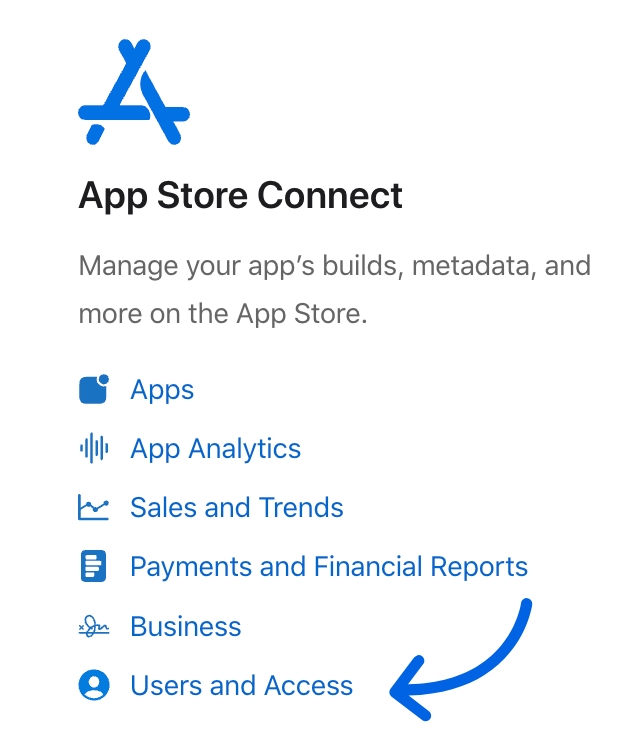
2. Go to Users and Access
From the main dashboard, navigate to Users and Access.
3. Open the Integrations Tab
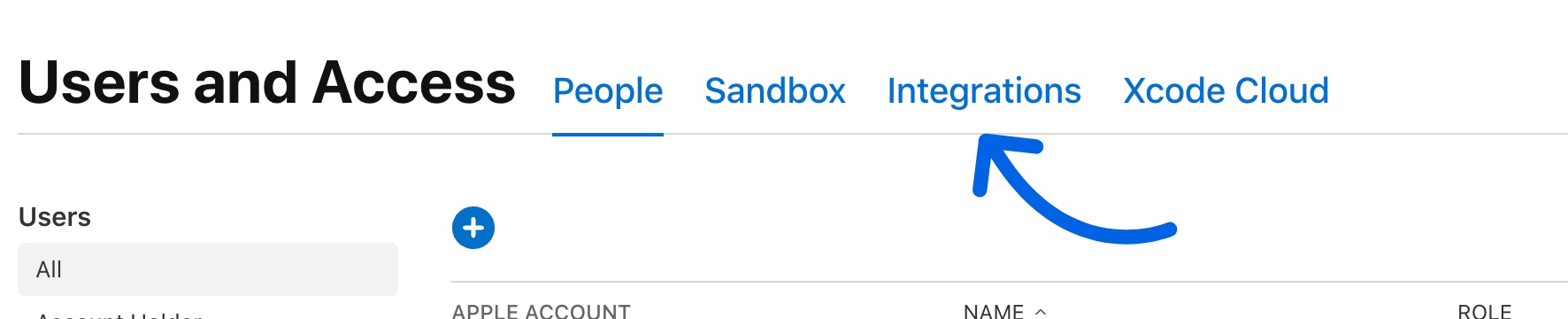
Inside Users and Access, click on the Integrations tab.
4. Create a New API Key
Click the (plus) icon to add a new key.
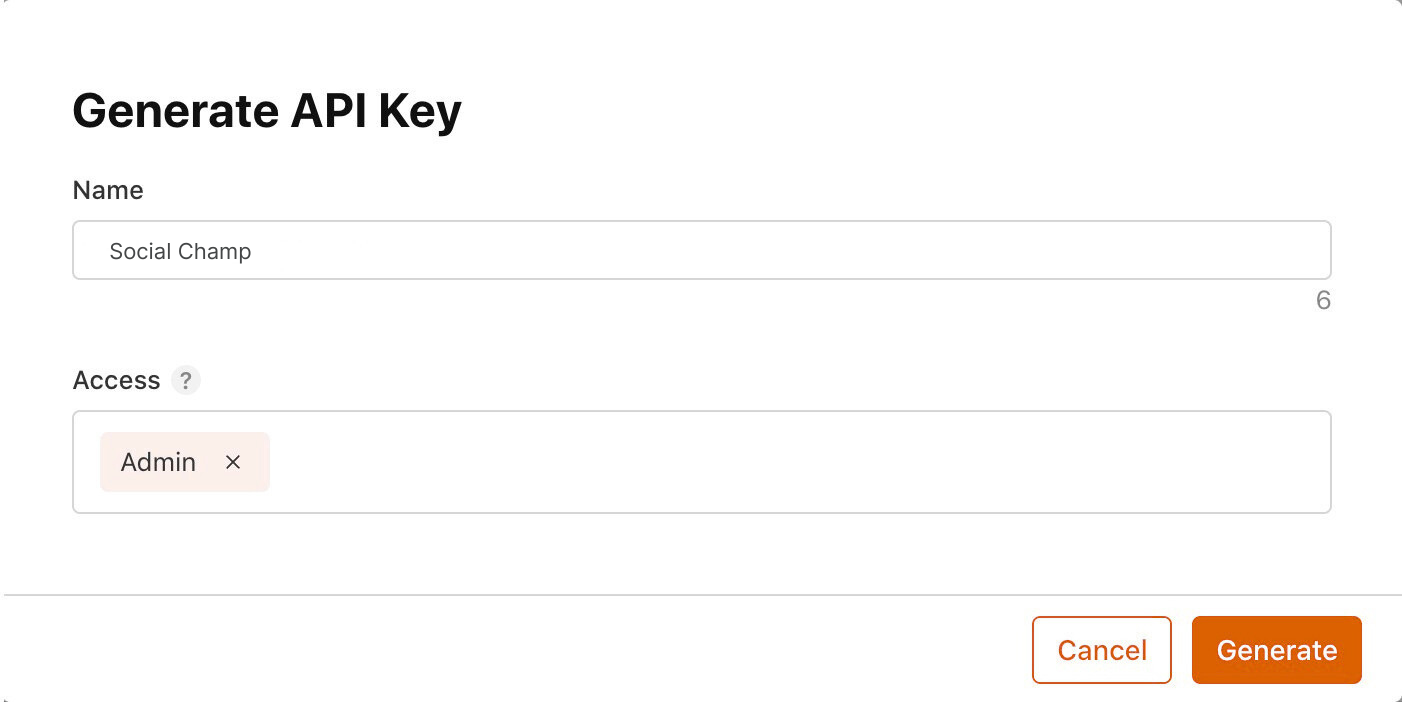
5. Configure the Key
- Enter a descriptive name (e.g. “Social Champ Integration”)
- Set Access to Admin
6. Generate and Download the Key
Click Generate.
Once the key appears in the Active table, click Download and save it securely.
⚠️ Important: You can only download this API key once. Store it safely.

Step 2: Connect Apple App Store to Social Champ
-
- Connect in Social Champ
- Once your Google Play Console is ready and permissions are set:
- Log in to your Social Champ account
- Navigate to the Add Button and select Add a Social Account.
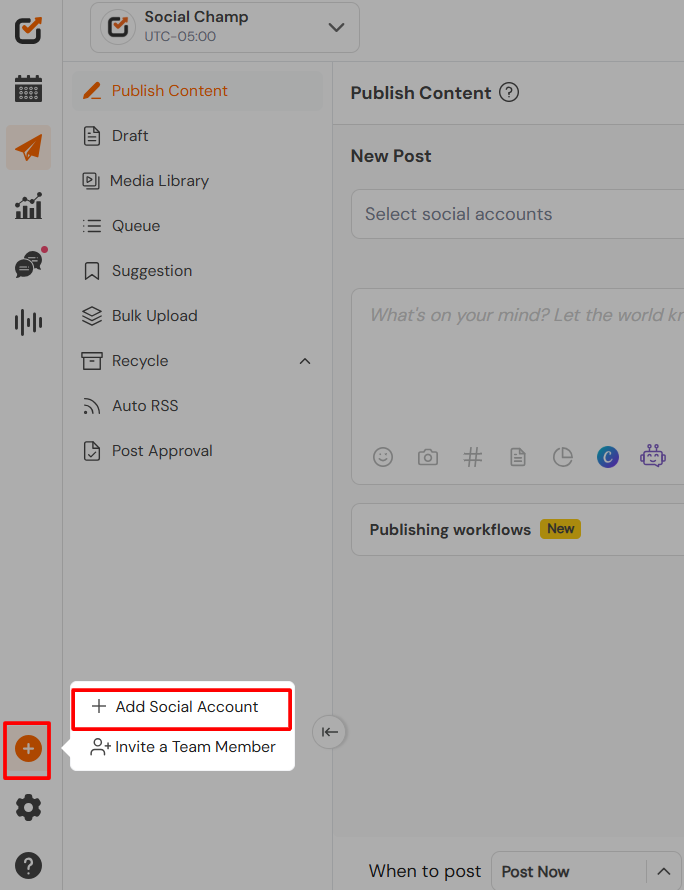
- Select the Apple Store from the list of available integrations.

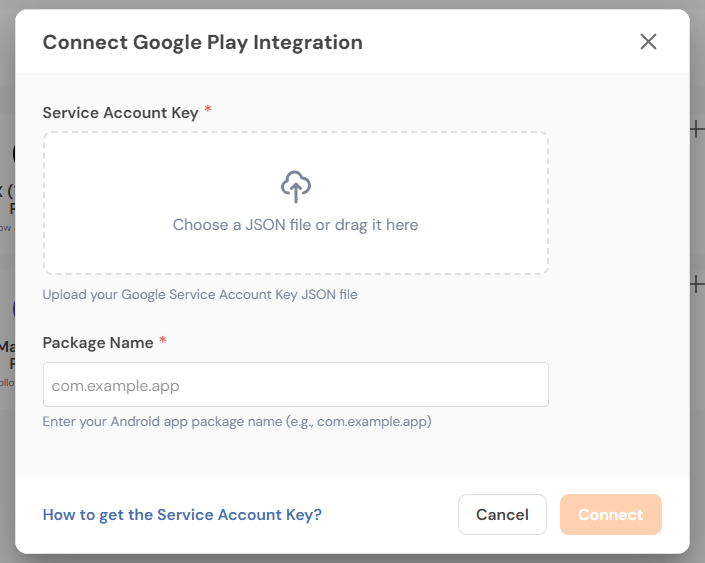
- Enter the app package name.
- Upload the JSON private key file you downloaded.
Need Help Getting Started?
If you have any questions or run into issues, our support team is here to help. Email us at support@socialchamp.com, and we’ll be happy to assist you.
Social Champ’s integration of Zapier is a recent addition to the already existing chest of feature integrations on board. Zapier Read more
Hey Champs! Follow this step-by-step guide to learn how you can use Social Champ’s Link Shortening feature. When you first Read more
Note: This guide is based on an earlier version of Social Champ. Some steps or features may have changed. Please Read more
Link shortening is a crucial tool for marketers, offering a more concise way to share URLs across social media. Social Read more