
This guide will help you schedule carousel posts (multiple images) to your Instagram Business or Creator account using Social Champ.
Before getting started, please ensure the following:
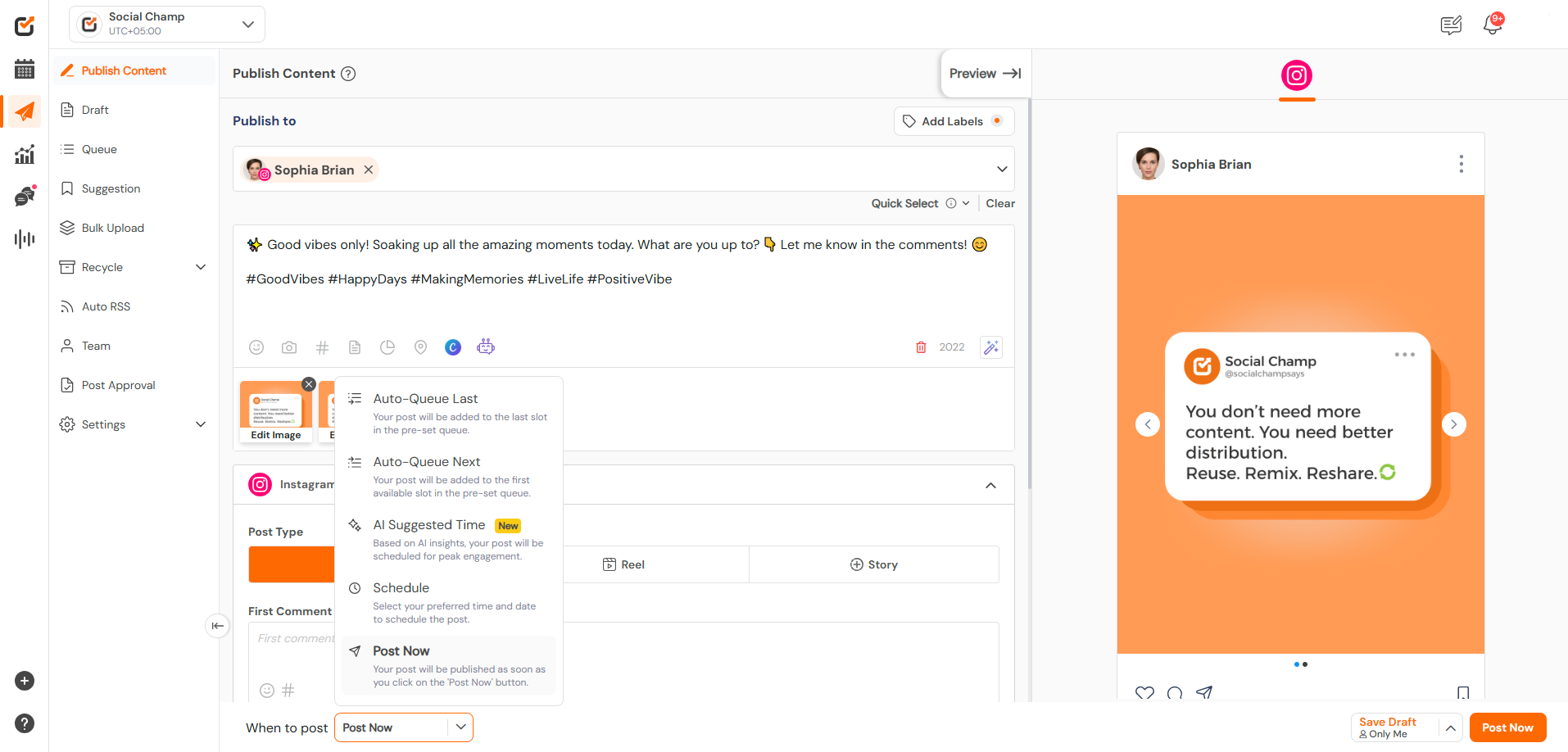
 4. Once your post is ready, select your preferred publishing option,
- You have an Instagram Business or Creator account
- The Instagram account is connected to a Facebook Page
- You’ve connected the account through the Instagram Professional option in Social Champ
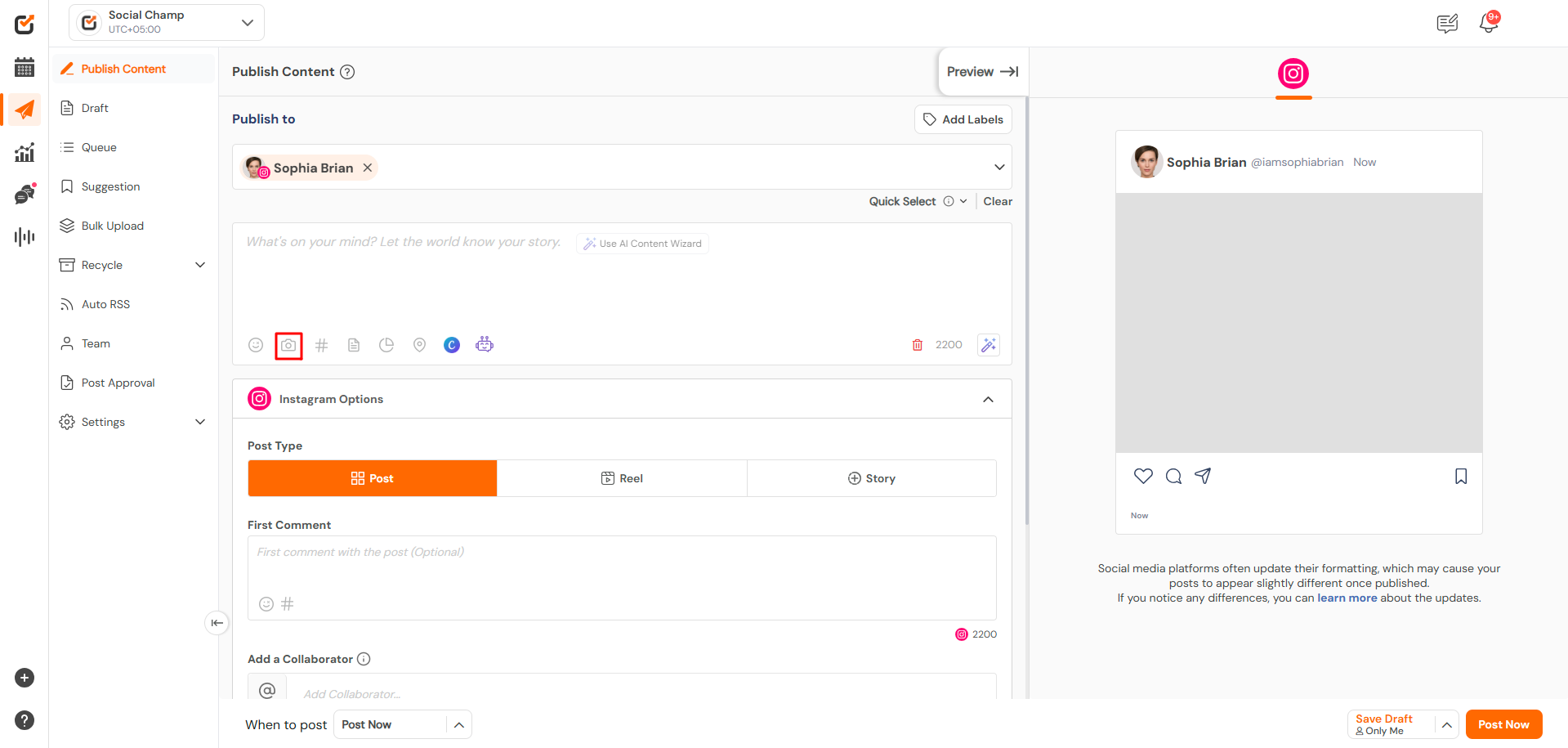
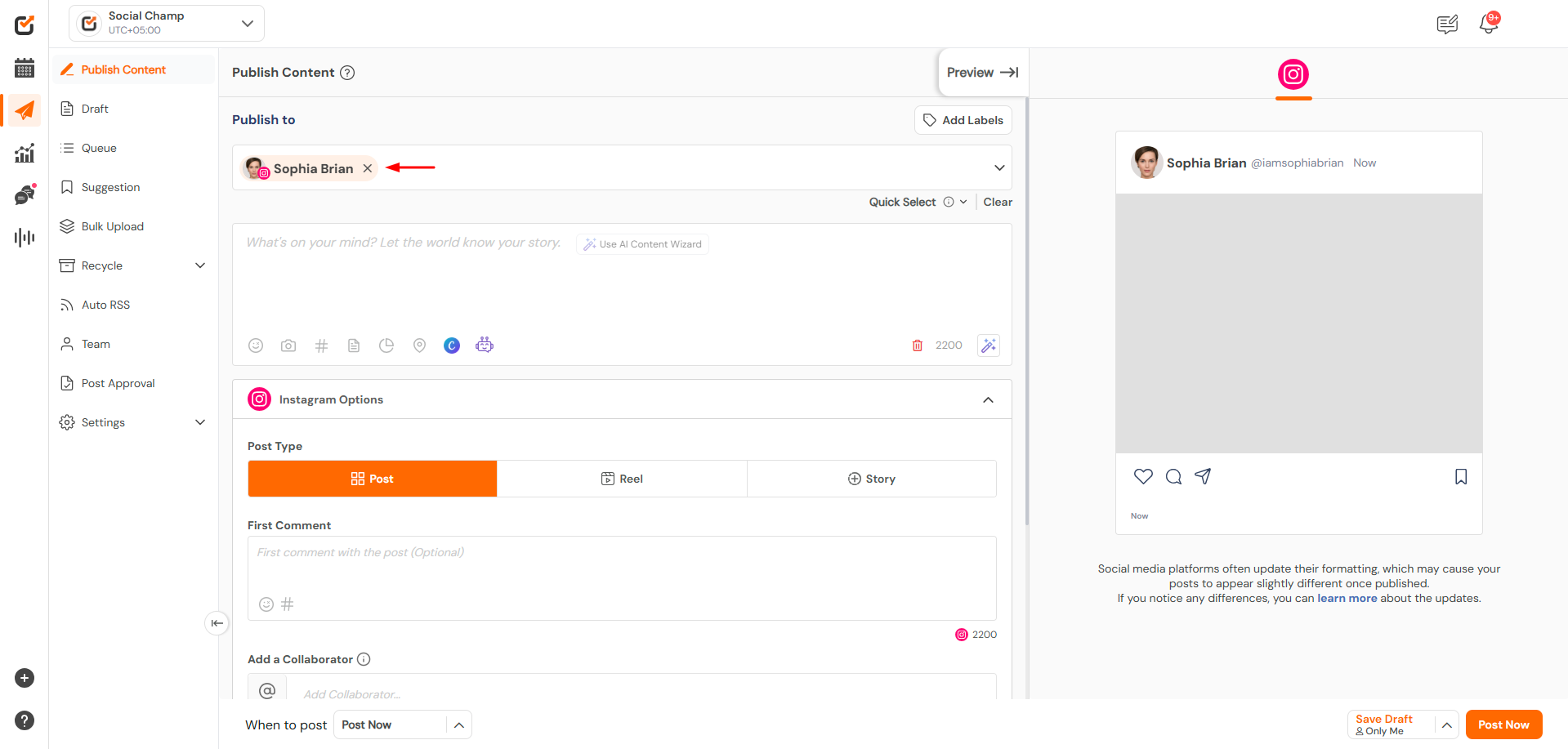
- Log into your Social Champ account. You will land on the Content Publish Dashboard. From there, select the appropriate Instagram Business or Creator account that you’ve connected through the Instagram Professional process.
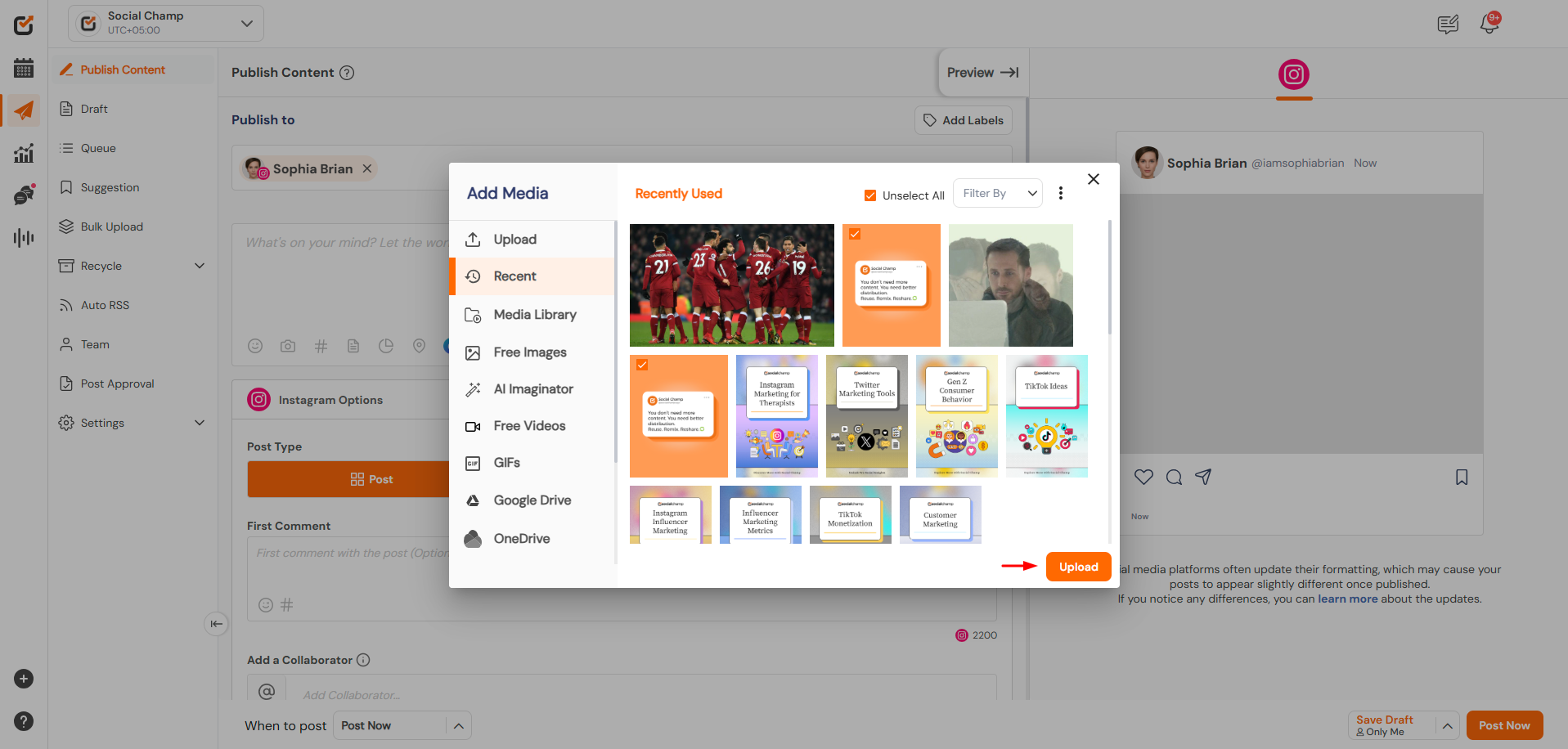
- Image formats supported: JPEG, PNG
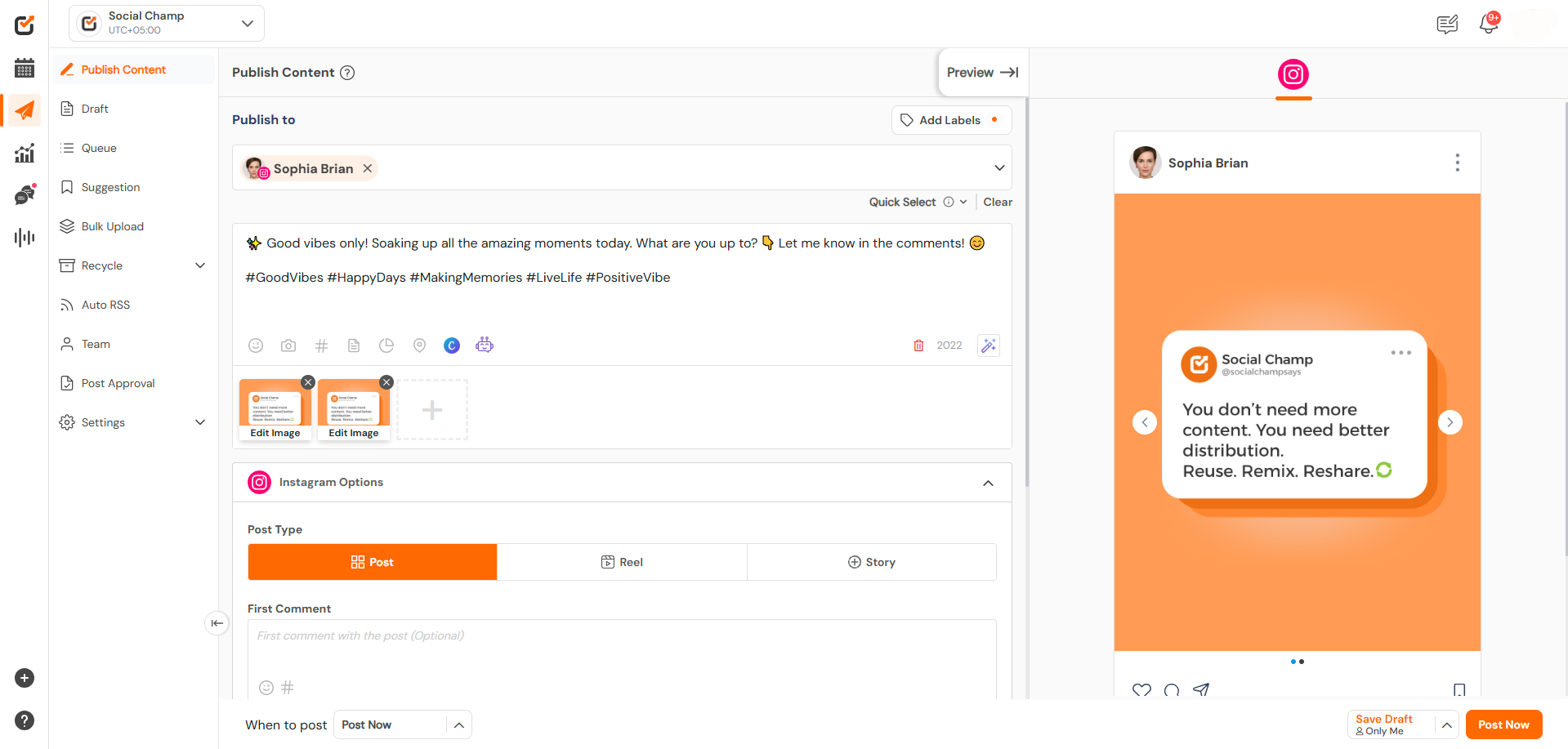
- Drag and drop files to rearrange the order
4. Once your post is ready, select your preferred publishing option,
- Schedule for later: Pick a date and time
- Add to queue: Add to your preset Queue for a social media account.
- Post now: Instantly publish your carousel
- AI Suggested time: Select the AI suggested time to get the most engagement on your account.
 –
–
Related Guides
Schedule Videos on YouTube- Learn How to Get Started

Enhance your content strategy and engage your audience with YouTube video scheduling. Follow this step-by-step guide to schedule videos on Read more
Get Started – Create Social Champ’s Shareable Draft

Hey, Champs! Social Champ now introduces its much-awaited feature ‘Shareable Drafts’, which allows you to share your saved scheduled posts Read more
Unlimited Post Scheduling, With Fair Usage Policy

Social Champ offers a free plan and three paid plans. The number of posts you can schedule using each plan Read more
Schedule Facebook Stories – Learn how to get started

You can now schedule Facebook Stories directly through Social Champ. This feature allows you to plan and automate short-form content Read more
Was this helpful?
Thanks for your feedback!